Customer guide
Jigmade Design Studio — Customer Getting Started Guide
Use this guide to activate your customer account, find assigned jig templates, arrange artwork, save and reopen work, and download a completed design.
Version 1.3 · Last verified November 7, 2026
Open your invitation and create a password
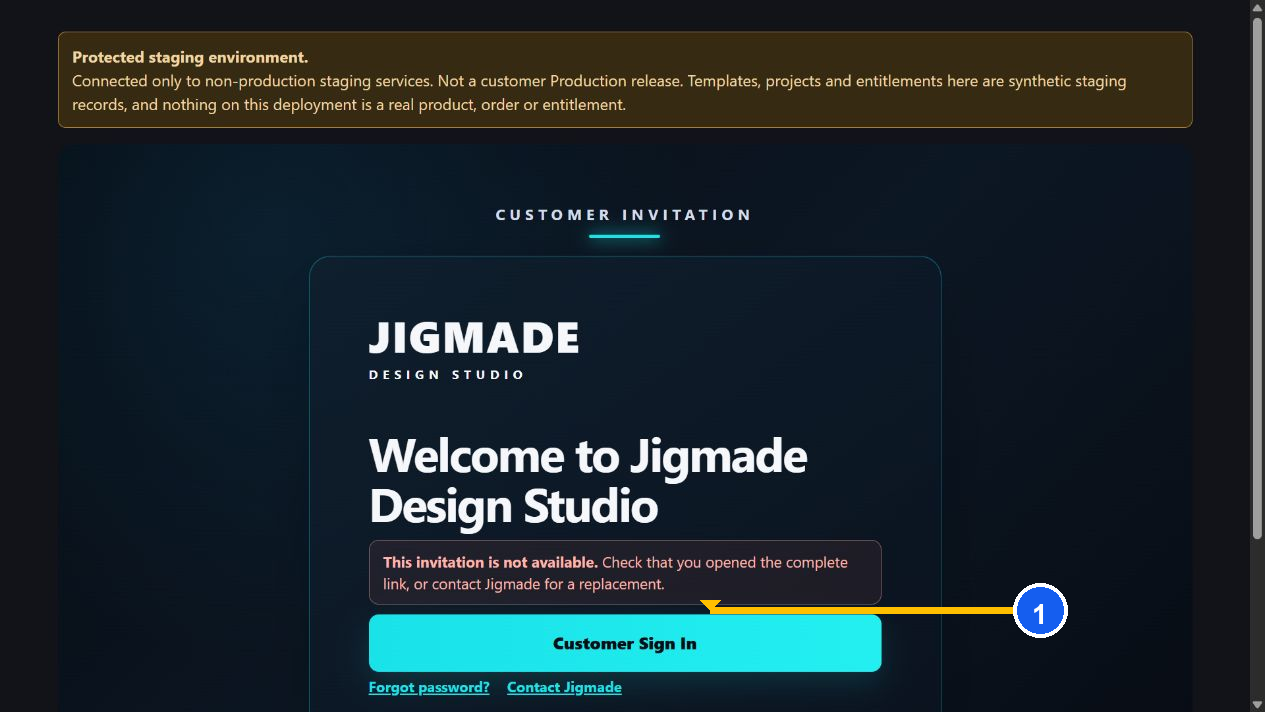
Open the Jigmade invitation sent for your order. Enter the intended email shown by the invitation, choose a password, confirm it and submit.
- A valid invitation is bound to one customer profile and its intended recipient.
- Do not forward or share the invitation link.
- If the link is expired, replaced, already used or incomplete, use Customer Sign In, Forgot password? or contact Jigmade for a replacement.
Verification: The invitation route and its safe invalid-link state were verified in protected Preview. The valid token and password fields are intentionally not shown.
Sign in again or recover your password
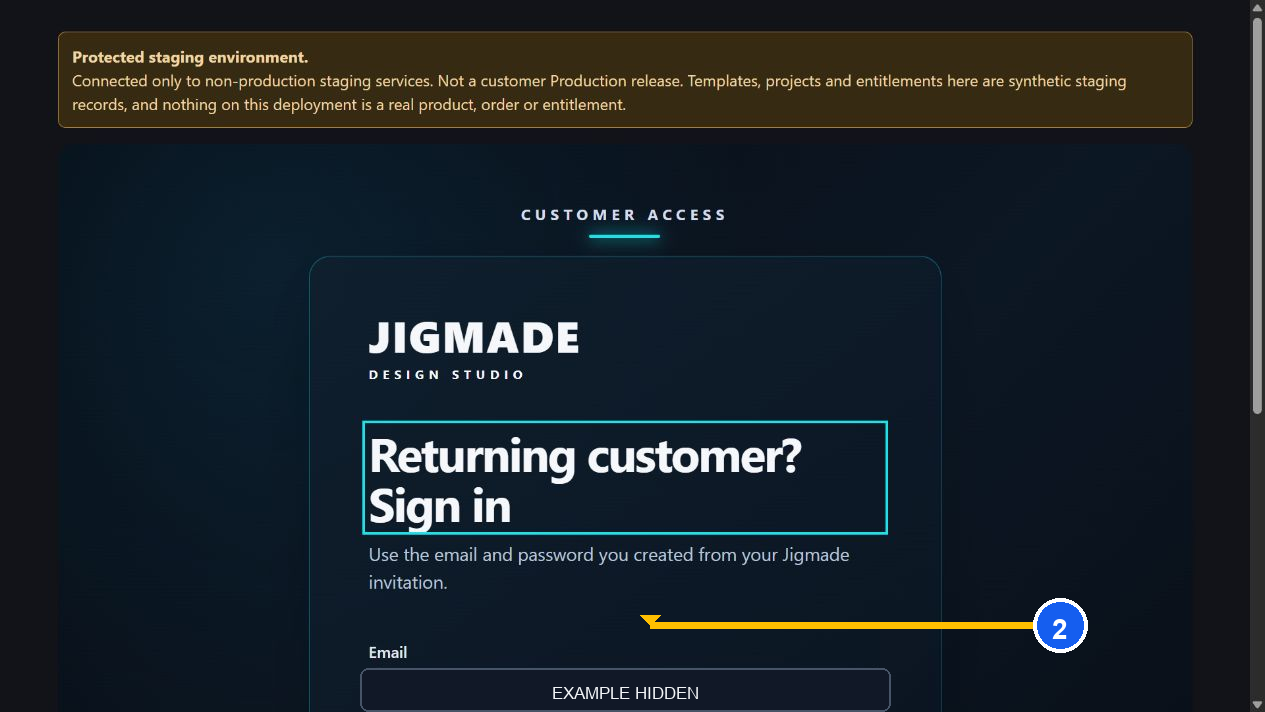
Returning customers enter the email and password created from the invitation, then select Sign in. Use Forgot password? to request a secure reset link.
- Password recovery uses a secure link; there is no customer numeric-code screen.
- After finishing your work, use Log out in the customer navigation.
- If you forget which email is registered, use Forgot your email?
Verification: Verified signed out in protected Preview.
Find your assigned jigs and orders
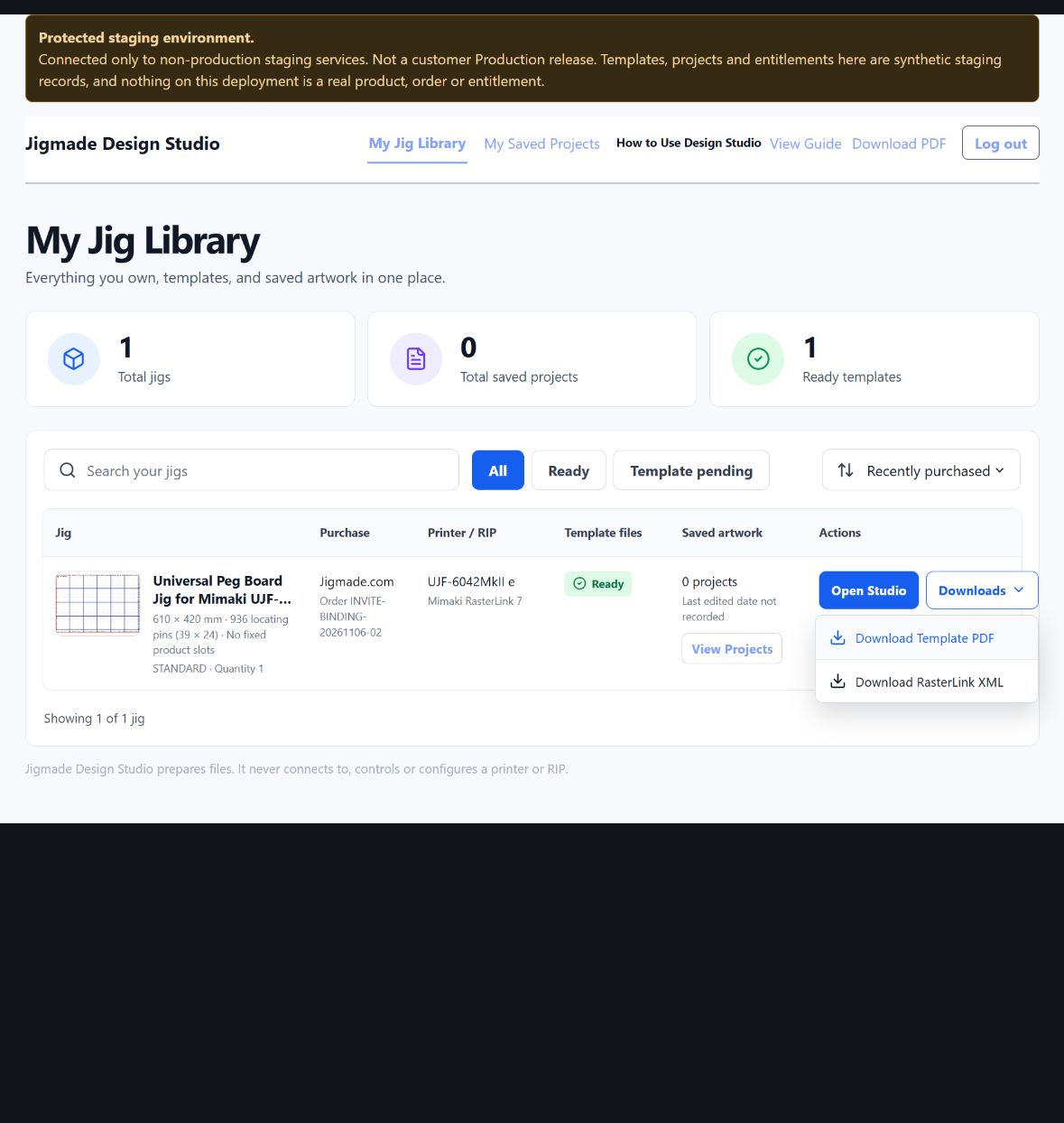
Open My Jig Library. Search or filter the list, then check the Purchase, Printer / RIP and Template files columns for the jig you want.
- Ready means the exact template is available to your profile.
- Template pending means Jigmade is still preparing it.
- Open Studio starts a design; View Projects shows saved work for that jig.
Verification: Verified through the normal protected-Preview customer workflow with one assigned, published template. The entitled customer saw one Ready jig and the expected customer-only actions.
Download the original blank template when needed
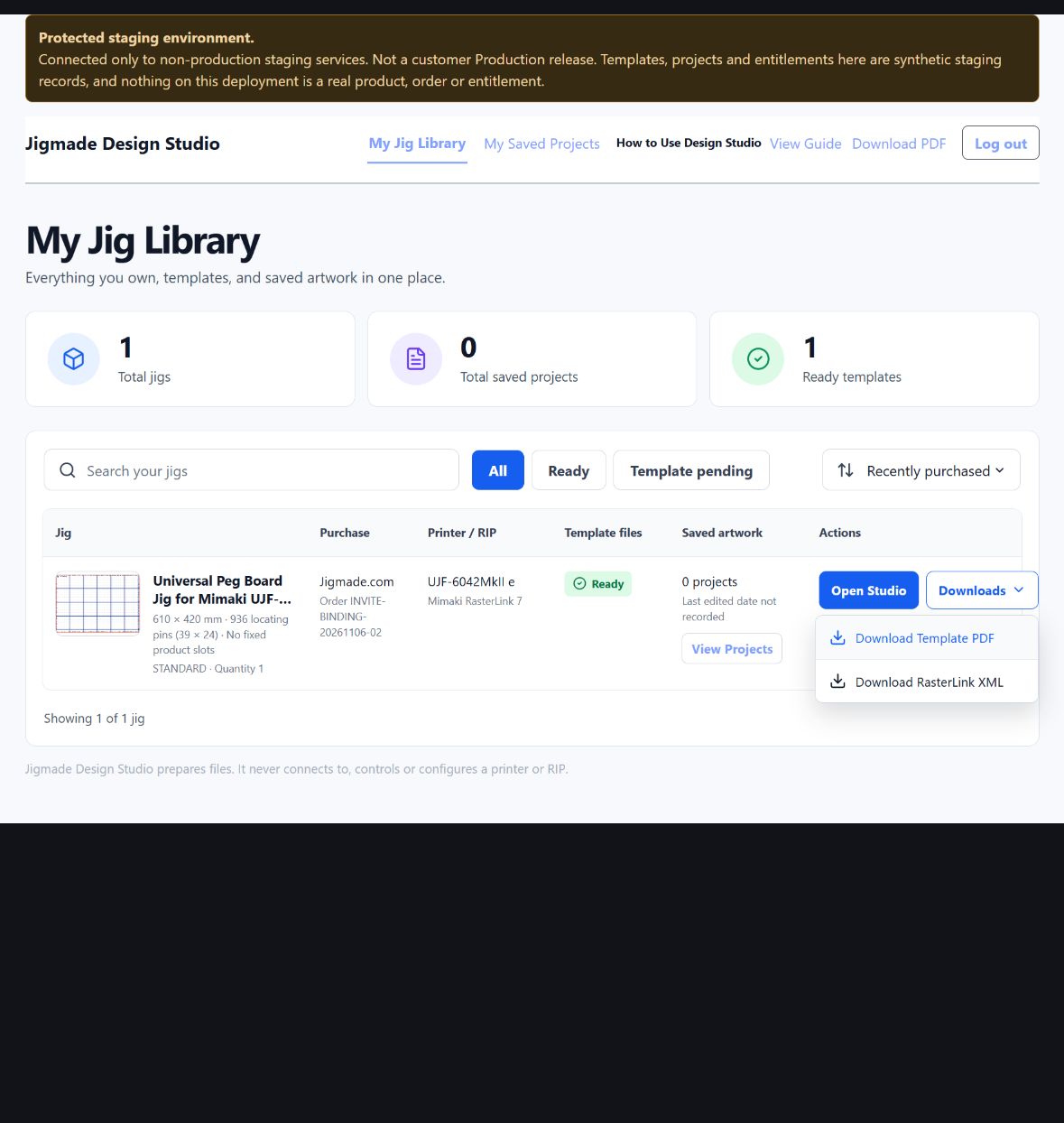
On a Ready jig, open Downloads and choose Download Template PDF. This is the unchanged blank template, not your completed artwork.
- Use Open Studio when you want to place artwork.
- Download Template PDF is for reference or an external design workflow.
- A template that is still pending cannot be downloaded.
Verification: Verified through the entitled protected-Preview customer workflow. The downloaded one-page blank template was 610 × 420 mm, 712,327 bytes, and retained SHA-256 F22E3449E54CB8A3A42CB698A5ACABAE8600BECF5421A91DEBBFDB8BC6F30BDC.
Open the template and upload artwork
Select Open Studio, then choose + Upload Artwork. Supported inputs shown by the interface are PDF, PNG, JPEG, SVG and TIFF.
- Choose only artwork you are authorized to use.
- More than one artwork file can be uploaded and placed in the same project.
- Uploaded files stay separate from the immutable jig template.
Verification: Verified through the normal entitled protected-Preview workflow using sanitized synthetic PNG and SVG artwork. No customer artwork was used.
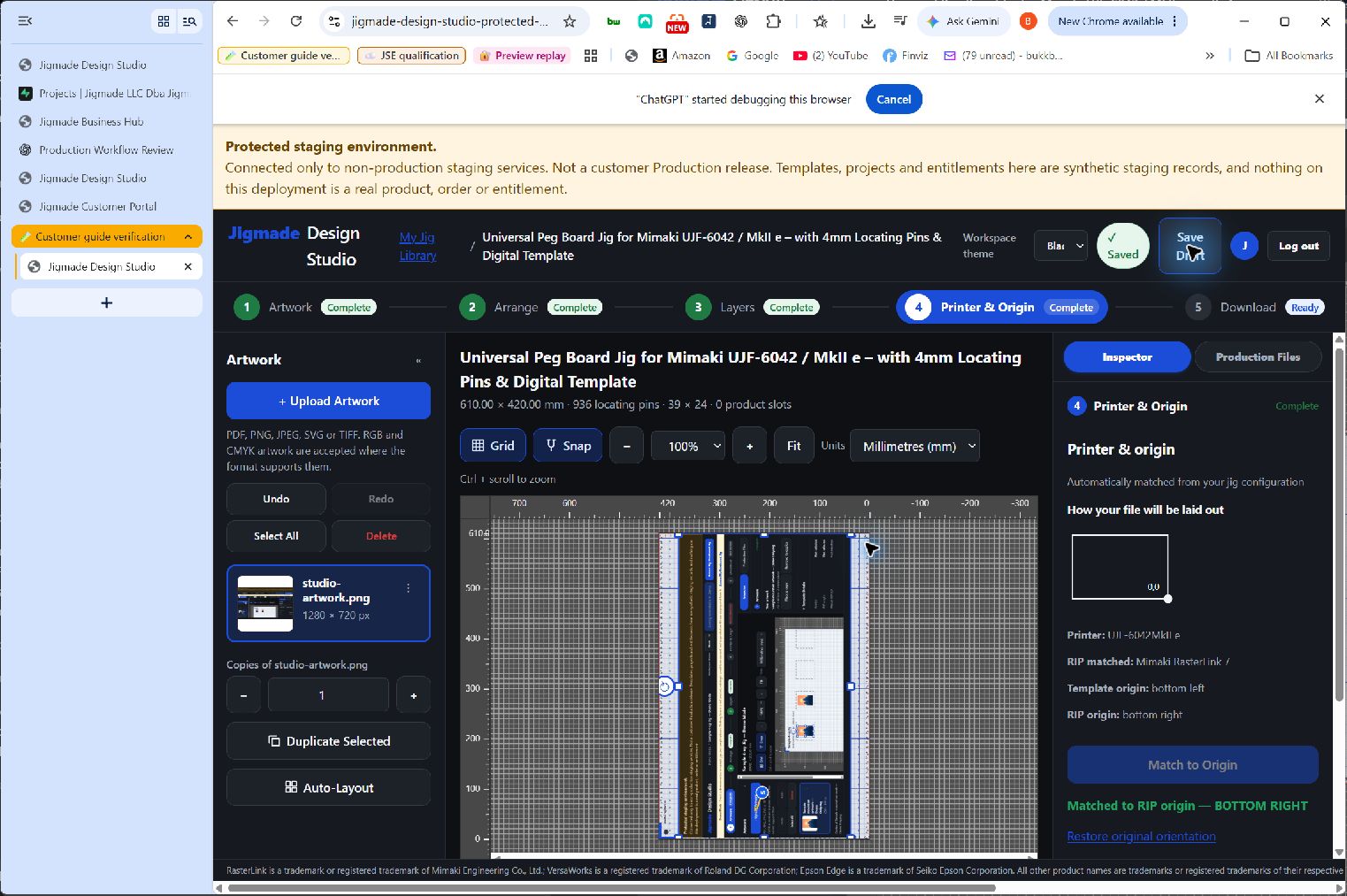
Position, size, rotate and duplicate artwork
Select an artwork copy. Use X, Y, Width and Height, Keep proportions, Rotation or Rotate 90°, alignment controls, Fit to Slot and Centre in Slot as available.
- Rotation is limited to 0°, 90°, 180° or 270°.
- Duplicate Selected creates another copy; the copy count and Auto-Fill Slots controls support multi-position layouts.
- Crop is non-destructive. Mirror changes the artwork copy, never the jig template.
Verification: Verified through the entitled protected-Preview workflow. The PNG reopened at X 0.00 mm, Y 38.44 mm, width 610.00 mm, height 343.12 mm and rotation 0°, matching the saved project.
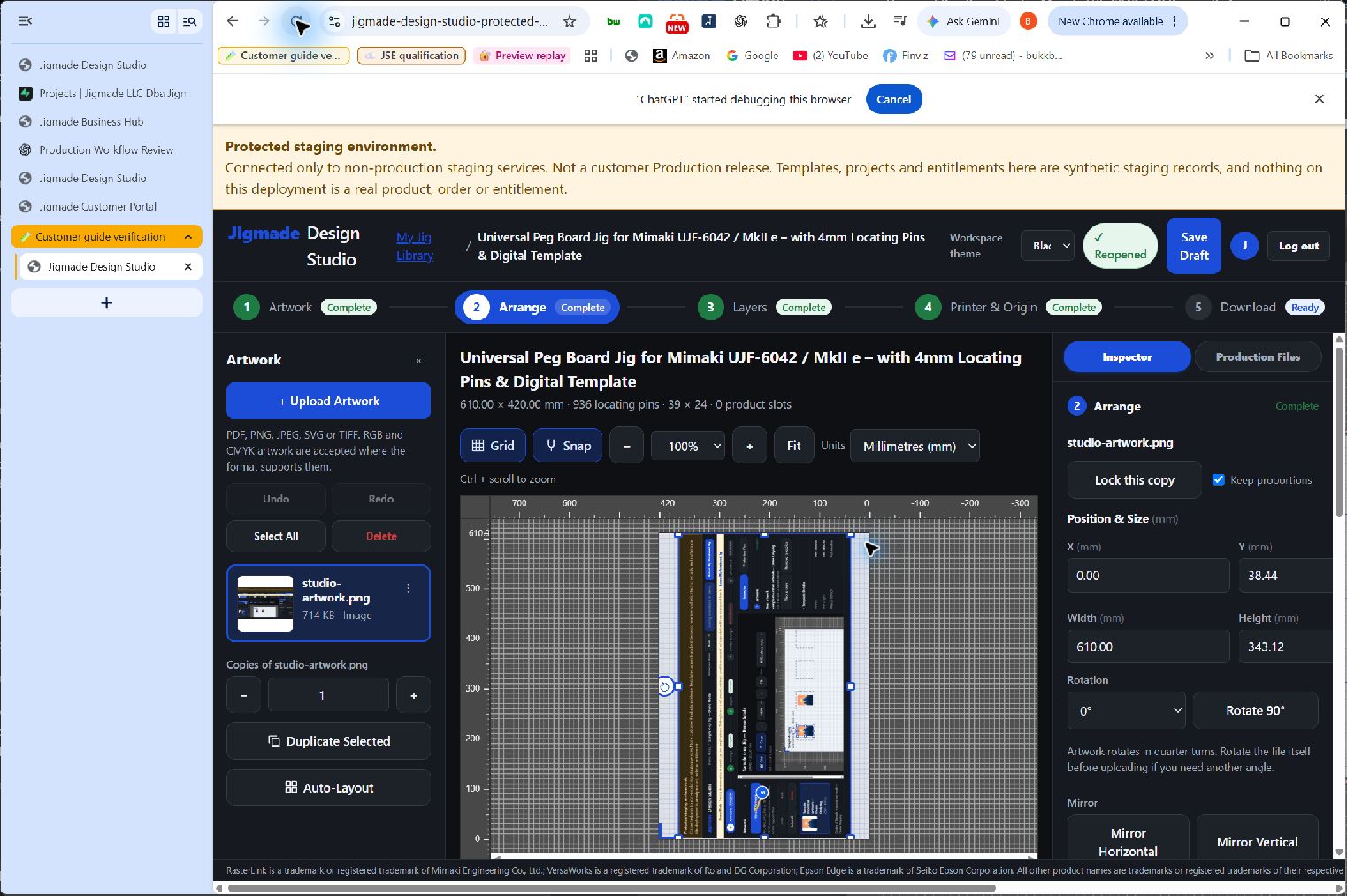
Choose Color, White and Varnish layers
Open Layers. COLOR / CMYK is the artwork color. Enable WHITE underbase or VARNISH only when the selected, supported production workflow calls for them.
- White and Varnish follow the same visible artwork shape and transform.
- Selected-area Varnish is not supported.
- Choke, spread, density, curing and physical print order are configured in your RIP, not in Design Studio.
Verification: Verified in the protected Preview Demo.
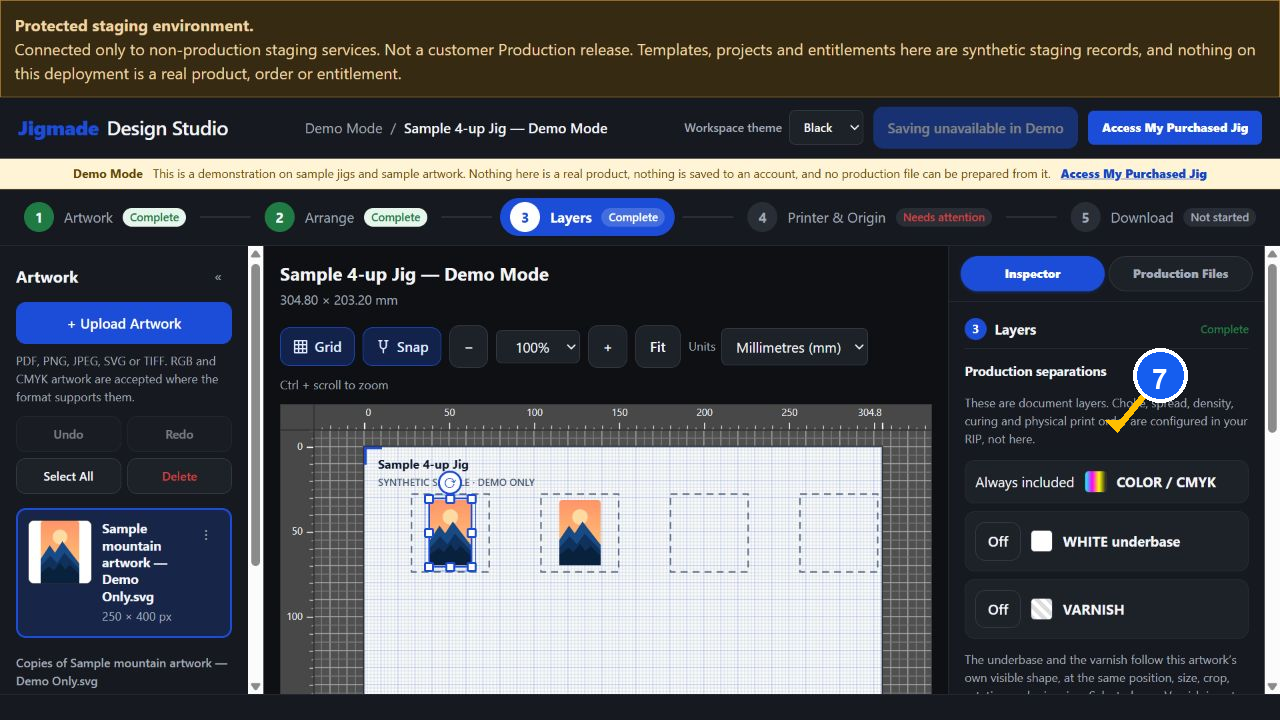
Prepare and download the completed design
Review the canvas, open Production Files, choose PDF or TIFF, and prepare the file. When Prepared appears, choose Download Artwork Only — Template Hidden.
- The completed-design download contains your placed artwork on the template page but hides the jig template; it is different from Download Template PDF.
- PDF is recommended for maximum fidelity. TIFF is a 300 ppi, LZW-compressed CMYK file and is available only when the selected layer combination supports it.
- Design Studio prepares a file only. You must manually import it into the approved RIP and complete RIP-specific setup there. It never connects to, controls or configures a printer or RIP.
Verification: Verified through the normal entitled protected-Preview workflow using asymmetric synthetic SVG and PNG artwork. PDF and TIFF files were downloaded and inspected. The governed 610 × 420 mm page geometry, artwork position, scale and rotation agreed across both formats; the original saved projects reopened unchanged and retained their exact project identities. This fixture used COLOR / CMYK only; WHITE and VARNISH were not included.
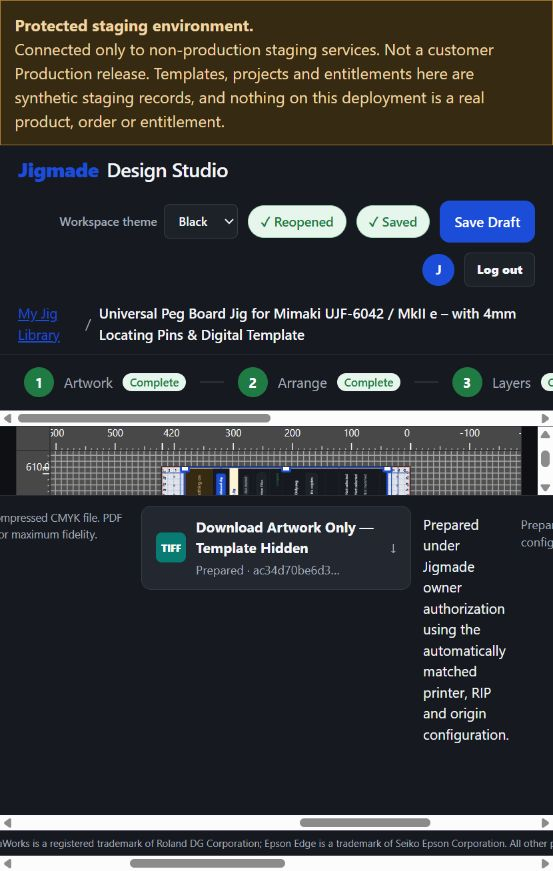
Save and reopen your work
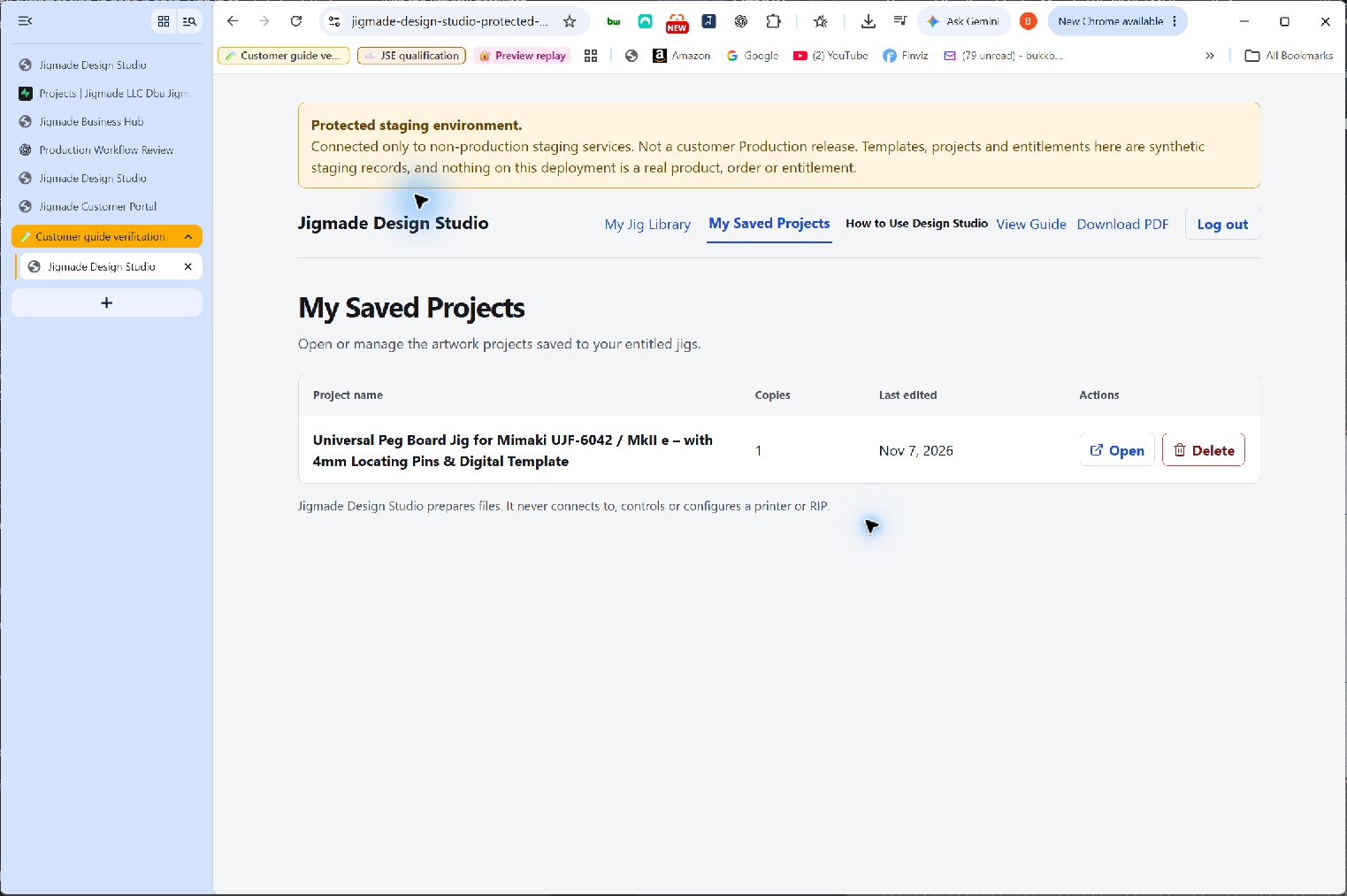
In an entitled Studio session, select Save Draft. Return through My Saved Projects and choose Open to continue the saved project.
- Wait for the Saved confirmation before leaving the Studio.
- A reopened Studio shows Reopened when the saved project loads.
- The public Demo intentionally cannot save or export.
Verification: Verified end to end in protected Preview. Save Draft produced Saved; My Saved Projects listed the project; Open returned to Studio with Reopened and the exact saved transform. Production was not changed.
Final checklist
- Use the invitation only for the intended customer email.
- Confirm the jig says Ready before opening Studio or downloading the template.
- Review every artwork copy, layer and position before preparing a file.
- Save the draft before leaving if you want to reopen it later.
- Import the prepared artwork file into the approved RIP manually and complete RIP-specific settings there.
- Keep the original template download separate from the completed artwork file.
Troubleshooting
- Invitation unavailable
- Open the complete invitation link. If it expired, was replaced or was already used, sign in, use Forgot password?, or contact Jigmade.
- Template pending
- The exact template is not ready yet. Contact Jigmade; do not use another customer's template.
- Completed design could not be prepared
- Your saved project remains available. Check that every workflow stage is complete, try the preparation once more, then contact Jigmade with the visible error if it still fails.
- White or Varnish with TIFF
- Choose PDF. The interface limits TIFF to CMYK-only artwork.
- Downloaded file is not in the browser
- Check the browser's Downloads list and your computer's Downloads folder.